I wanted to create a choropleth map today. In the geoJSON file, we can find the land area and water area in the county. It can make sense to color the county by the water area.
I found an example in Basic choropleth map in d3.js. The code is very simple, we only need to replace the (“fill”, “none”) with some metrics to color it.
svg.append("g")
    .selectAll("path")
    .data(topo.features)
    .enter()
    .append("path")
      // draw each country
      .attr("d", d3.geoPath()
        .projection(projection)
      )
      // set the color of each country
      .attr("fill", function (d) {
        d.total = data.get(d.id) || 0;
        return colorScale(d.total);
      })
However, I got the map on the right after implementing the fill. Only a few polygons are shown on the map, and the whole background is filled with color. I spent a few hours today figuring out why it is not working. I tried different methods, but none of them worked.
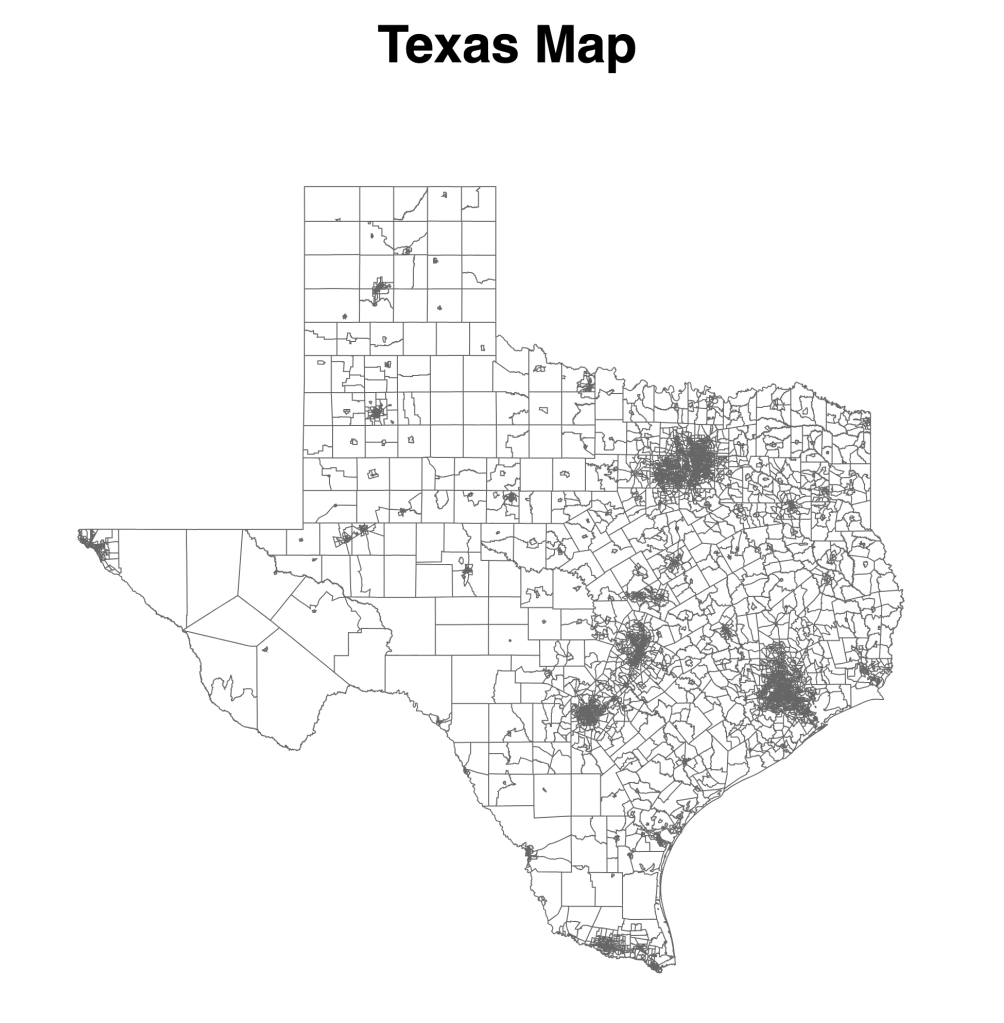
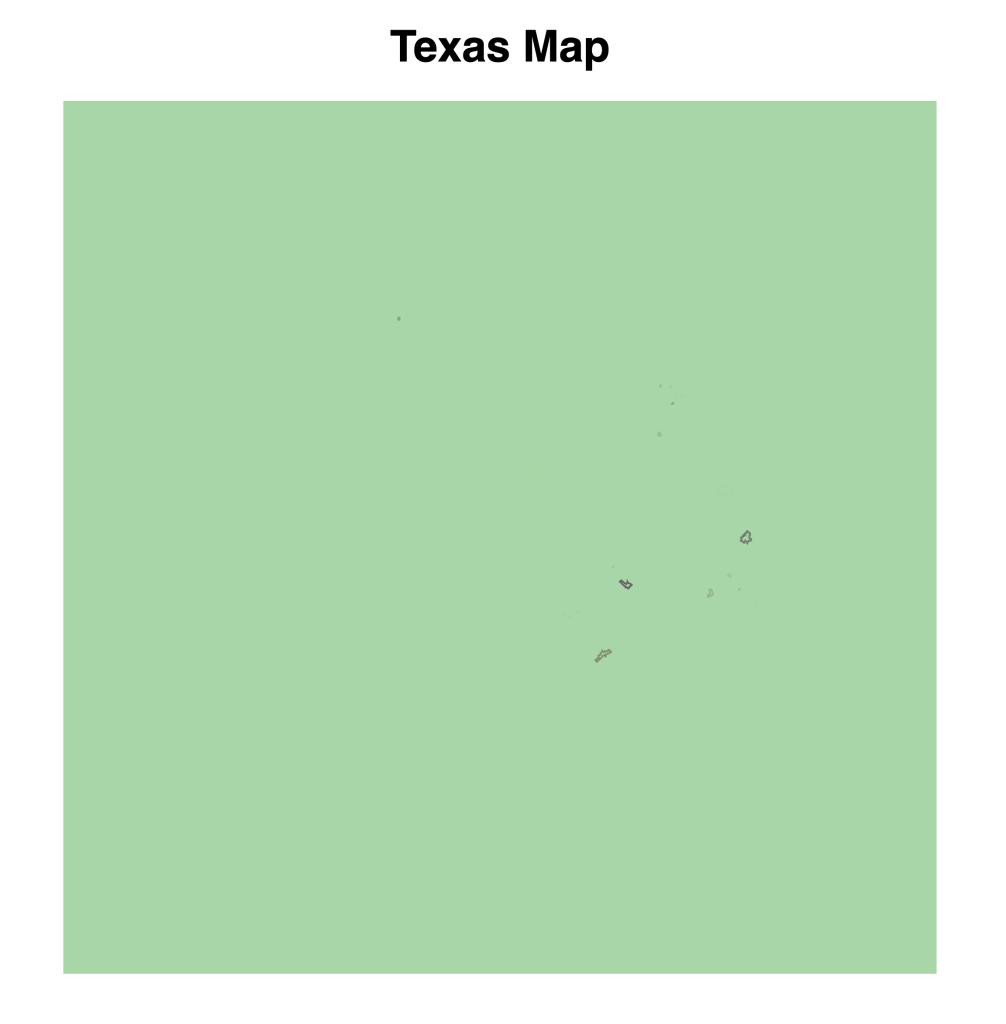
Well, it turned out that the JSON file I exported yesterday is not good. First, it does not have the features attribute when I console.log(geojson) object. In the example, the “topo” object can be called as “topo.features”. I have to read the attribute table and save it as a CSV file (see Shapefile at the end if you are interested in how I get it).
Then, I think the whole square is filled with color might be caused by the line is not enclosed (I am not sure about this though, just a guess). Additionally, the file load was very slow, which caused my computer to crash. But it is not a big shapefile. At last, I think it should be a problem with my source file.
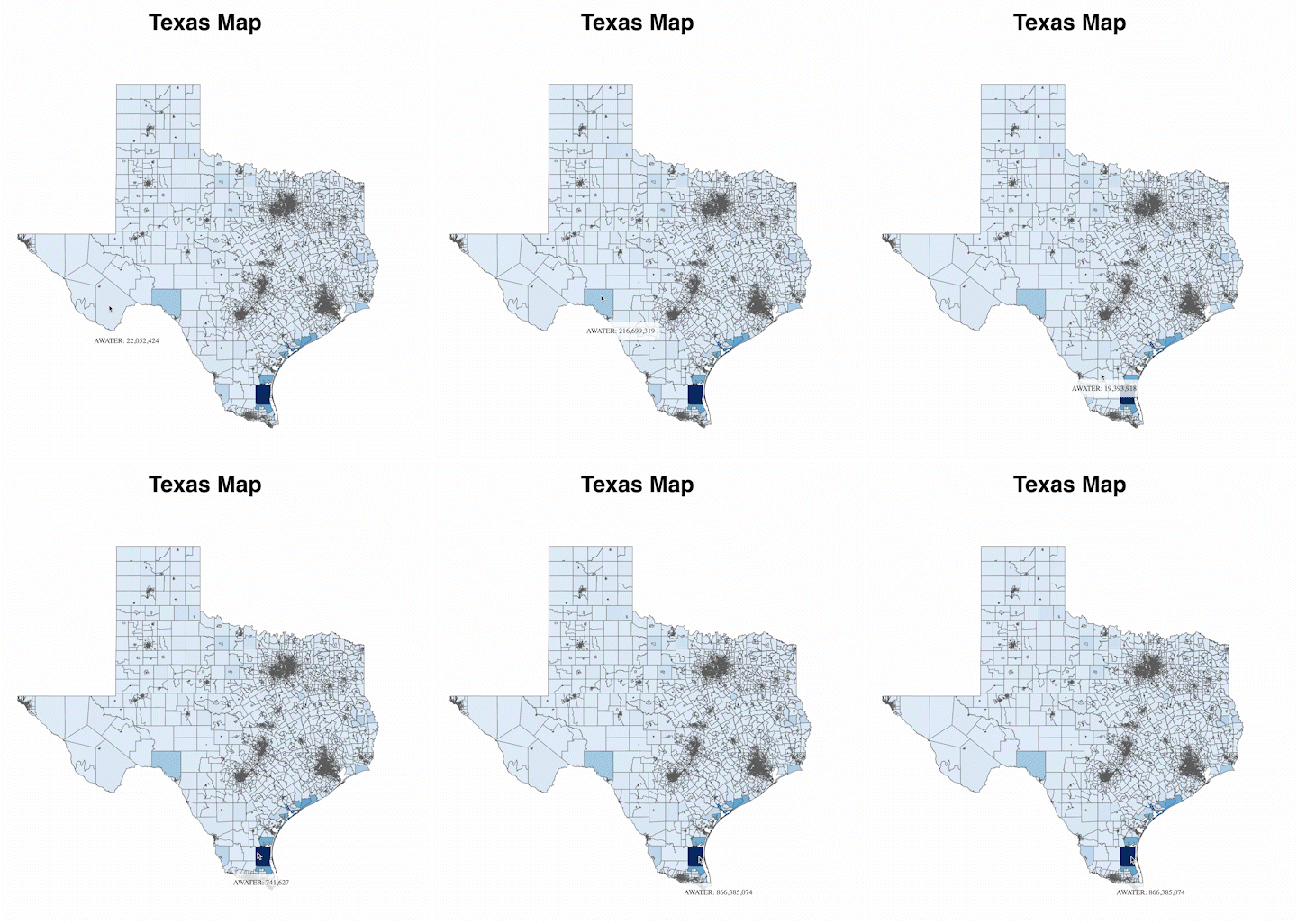
What I did at last is to download QGIS and properly exported the ESRI shapefile to geojson file (see Shapefile at the end). Then it worked!


Shapefile
When we downloaded the shapefile from the government website yesterday, it was a zip file. We get the following files after unzipping them. You can open the one with .dbf with Excel, then export it as CSV. Opening this file can also help you quickly have a look at the attributes associated with the shapefile.

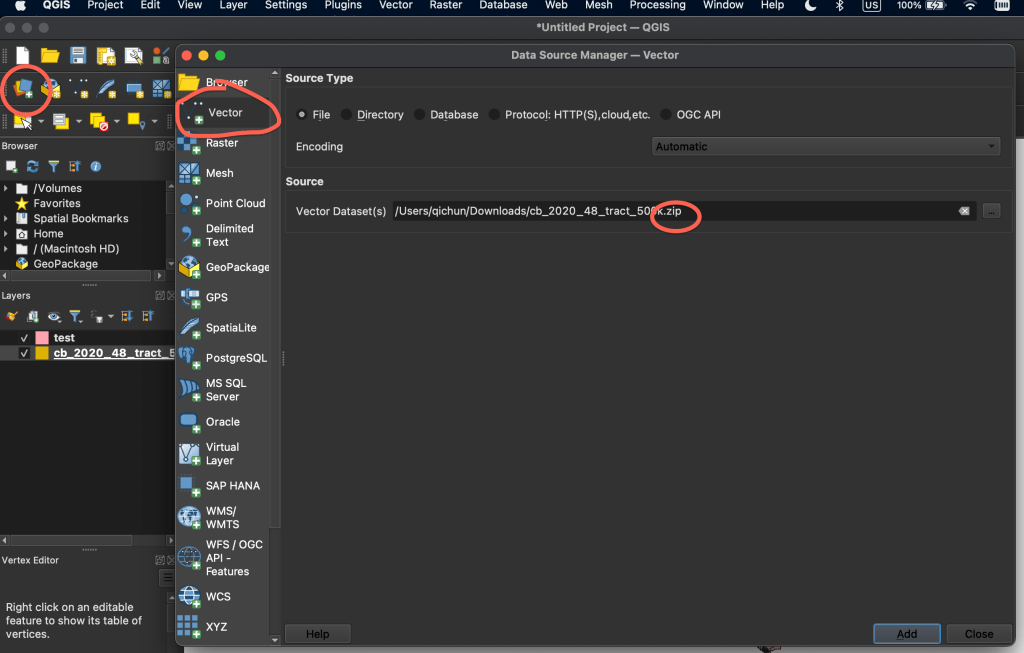
For QGIS to read the shapefile, we will add a layer -> Vector -> read the zip file instead of individual ones.
 Qichun Dai